











Table of Contents
Free SEO Audit Template: Your Step-by-Step Checklist for Success
Defining the Scope of Your SEO Audit
Ever tried to clean out your closet only to realize you’ve got three years' worth of clothes you forgot existed? That’s what an SEO audit can feel like if you don’t define its scope. You might end up digging through endless data, only to find that the broken link on your homepage is a bigger issue than the content on page five.
Want these checks run automatically? Try our free website SEO audit — it scores your site for both Google and AI search in under a minute.
Before diving headfirst into your SEO audit template, it’s crucial to set clear boundaries. Are you focusing on technical SEO, content quality, backlink profiles, or all of the above? Each area has its own set of metrics and tools, and a scattergun approach will leave you overwhelmed and under-informed.
Identify Your Key Objectives
Start by pinpointing what you want to achieve. Are you looking to improve organic traffic by a specific percentage? Or maybe you're aiming to enhance user experience by reducing bounce rates? Defining these objectives will help narrow down your focus. For example, if your goal is to increase traffic from search engines by 30% in six months, you’ll want to look closely at keyword rankings and on-page optimization.
Choose Your Metrics Wisely
Next up: metrics! Not all data is created equal. While it’s tempting to chase every shiny metric out there, stick with the ones that align with your goals. If improving page speed is a priority (and it should be—Google reports that a one-second delay can decrease conversions by 7%), focus on Core Web Vitals and loading times instead of getting lost in social media shares.
- Organic traffic growth
- Keyword ranking improvements
- Bounce rate reduction
- Conversion rate optimization
Pro tip: Always tie your metrics back to business outcomes—this keeps everyone aligned and helps justify your efforts!
Prioritize Areas for Improvement
What should I tackle first? is the million-dollar question in any audit. Prioritization is key here. Use tools like Google Analytics or SEMrush to identify pages with high traffic but low conversion rates; these are gold mines for improvement. Similarly, pages with high bounce rates might need content revamps or better internal linking strategies.
Ultimately, defining the scope of your SEO audit isn’t just about saving time; it’s about maximizing impact. With clarity on objectives and priorities, you'll not only streamline your process but also set yourself up for success in achieving those all-important rankings.
Ever tried to clean out your closet only to realize you’ve got three years' worth of clothes you forgot existed? That’s what an SEO audit can feel like if you don’t define its scope. You might end up digging through endless data, only to find that the broken link on your homepage is a bigger issue than the content on page five.
Before diving headfirst into your SEO audit template, it’s crucial to set clear boundaries. Are you focusing on technical SEO, content quality, backlink profiles, or all of the above? Each area has its own set of metrics and tools, and a scattergun approach will leave you overwhelmed and under-informed.
Identify Your Key Objectives
Start by pinpointing what you want to achieve. Are you looking to improve organic traffic by a specific percentage? Or maybe you're aiming to enhance user experience by reducing bounce rates? Defining these objectives will help narrow down your focus. For example, if your goal is to increase traffic from search engines by 30% in six months, you’ll want to look closely at keyword rankings and on-page optimization.
Choose Your Metrics Wisely
Next up: metrics! Not all data is created equal. While it’s tempting to chase every shiny metric out there, stick with the ones that align with your goals. If improving page speed is a priority (and it should be—Google reports that a one-second delay can decrease conversions by 7%), focus on Core Web Vitals and loading times instead of getting lost in social media shares.
- Organic traffic growth
- Keyword ranking improvements
- Bounce rate reduction
- Conversion rate optimization
Pro tip: Always tie your metrics back to business outcomes—this keeps everyone aligned and helps justify your efforts!
Prioritize Areas for Improvement
What should I tackle first? is the million-dollar question in any audit. Prioritization is key here. Use tools like Google Analytics or SEMrush to identify pages with high traffic but low conversion rates; these are gold mines for improvement. Similarly, pages with high bounce rates might need content revamps or better internal linking strategies.
Ultimately, defining the scope of your SEO audit isn’t just about saving time; it’s about maximizing impact. With clarity on objectives and priorities, you'll not only streamline your process but also set yourself up for success in achieving those all-important rankings.
Technical SEO Assessment Components
Imagine you’ve just launched a brand-new website that’s as sleek as a sports car but somehow still drives like a tricycle. That’s what can happen when technical SEO is neglected—your site may look fabulous, but if it’s not optimized behind the scenes, you could be missing out on valuable traffic.
Technical SEO is the backbone of your online presence. It ensures that search engines can crawl, index, and understand your site effectively. Without this foundation, even the most compelling content won’t help you rank.
Site Speed and Performance
First on the checklist is site speed. Google’s studies indicate that a one-second delay in load time can lead to a 7% reduction in conversions. If your website feels like it’s stuck in molasses, users—and search engines—will bounce faster than you can say SEO audit template.
- Check loading times using tools like Google PageSpeed Insights.
- Optimize images and leverage browser caching.
- Minimize JavaScript and CSS files.
Mobile-Friendliness
Mobile-first isn’t just a buzzword; it’s how Google indexes sites now. If your site doesn’t work seamlessly on mobile devices, you're not just missing out on traffic; you're also risking penalties from search engines.
- Responsive design should be your mantra.
- Test your site with Google’s Mobile-Friendly Test tool.
- Ensure buttons are easy to click and text is readable without zooming.
Crawlability and Indexing
Crawlability refers to how easily search engine bots can navigate your website. If they can't access important pages due to poor structure or broken links, good luck ever ranking for those keywords!

Imagine you’ve just launched a brand-new website that’s as sleek as a sports car but somehow still drives like a tricycle. That’s what can happen when technical SEO is neglected—your site may look fabulous, but if it’s not optimized behind the scenes, you could be missing out on valuable traffic.
Technical SEO is the backbone of your online presence. It ensures that search engines can crawl, index, and understand your site effectively. Without this foundation, even the most compelling content won’t help you rank.
Site Speed and Performance
First on the checklist is site speed. Google’s studies indicate that a one-second delay in load time can lead to a 7% reduction in conversions. If your website feels like it’s stuck in molasses, users—and search engines—will bounce faster than you can say SEO audit template.
- Check loading times using tools like Google PageSpeed Insights.
- Optimize images and leverage browser caching.
- Minimize JavaScript and CSS files.
Mobile-Friendliness
Mobile-first isn’t just a buzzword; it’s how Google indexes sites now. If your site doesn’t work seamlessly on mobile devices, you're not just missing out on traffic; you're also risking penalties from search engines.
- Responsive design should be your mantra.
- Test your site with Google’s Mobile-Friendly Test tool.
- Ensure buttons are easy to click and text is readable without zooming.
Crawlability and Indexing
Crawlability refers to how easily search engine bots can navigate your website. If they can't access important pages due to poor structure or broken links, good luck ever ranking for those keywords!
On-Page SEO Elements to Review
Ever tried to read a great book only to find the pages are all out of order? That’s what happens when your on-page SEO elements are misaligned. You might have the best content in the world, but if your meta tags and headings are a hot mess, search engines won’t know how to properly index or rank your site.
On-page SEO is like the friendly tour guide for your website. It helps search engines understand what each page is about and ensures users have a smooth journey through your content. So, let’s break down the essential elements you need to review in your SEO audit template.
Title Tags and Meta Descriptions
These are the first impressions that users get when they see your site in search results. A well-crafted title tag can be the difference between a click and a scroll past. Aim for around 60 characters for titles and keep meta descriptions under 160 characters. Remember, you’re not just stuffing keywords here; you’re enticing readers with a hook that makes them want to learn more.
- Include primary keywords naturally.
- Make it compelling—think of it as your website's elevator pitch.
- Avoid duplicates across pages—each page should have its unique flavor.
Header Tags (H1, H2, H3…)
H tags are like the outline of a book—they help organize information and make it easier for both users and search engines to navigate. Your H1 should be descriptive and include your primary keyword, while H2s and H3s can break down sections into digestible pieces.
Pro tip: Use only one H1 tag per page for clarity.
Content Quality and Keyword Optimization
Content is king may be a cliché, but there’s truth in it! High-quality content that answers user queries keeps visitors engaged longer. Use keyword research tools to find relevant terms but avoid keyword stuffing—no one wants to read a robotic script!
- Write for humans first; optimize for search engines second. – This means natural language over awkward phrasing.
- Aim for at least 300 words per page. – Shorter content often lacks depth.
- Use internal linking wisely. – This not only helps with navigation but also spreads link equity throughout your site.
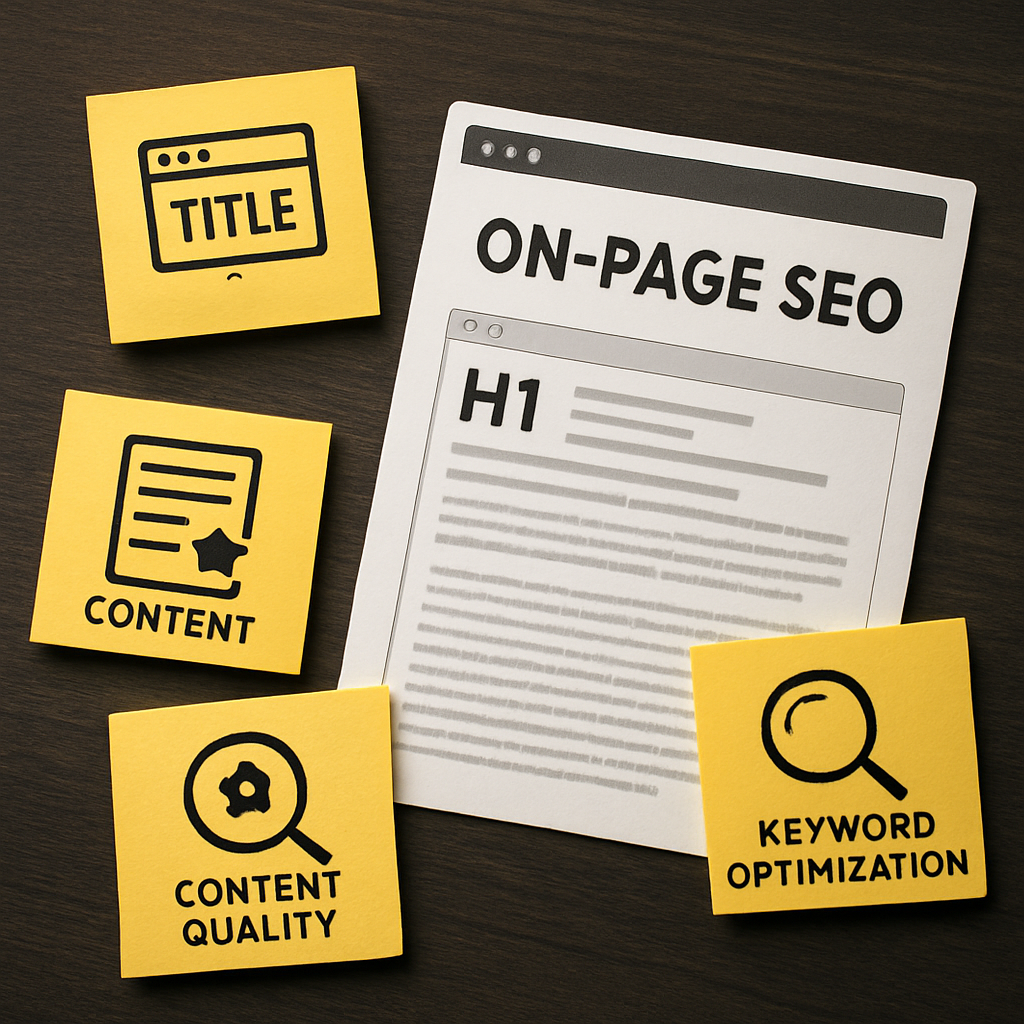
Image Optimization
Images enhance user experience but can slow down load times if not optimized properly. Make sure you're using appropriate file formats (JPEG for photos, PNG for graphics) and compressing images without sacrificing quality. Also, don’t forget about alt text—it’s crucial for accessibility and helps search engines understand image context!
- Use descriptive filenames. – Instead of IMG1234.jpg, try blue-widget-product.jpg.
- Keep alt text concise but informative. – Aim for about 125 characters.
Ever tried to read a great book only to find the pages are all out of order? That’s what happens when your on-page SEO elements are misaligned. You might have the best content in the world, but if your meta tags and headings are a hot mess, search engines won’t know how to properly index or rank your site.
On-page SEO is like the friendly tour guide for your website. It helps search engines understand what each page is about and ensures users have a smooth journey through your content. So, let’s break down the essential elements you need to review in your SEO audit template.
Title Tags and Meta Descriptions
These are the first impressions that users get when they see your site in search results. A well-crafted title tag can be the difference between a click and a scroll past. Aim for around 60 characters for titles and keep meta descriptions under 160 characters. Remember, you’re not just stuffing keywords here; you’re enticing readers with a hook that makes them want to learn more.
- Include primary keywords naturally.
- Make it compelling—think of it as your website's elevator pitch.
- Avoid duplicates across pages—each page should have its unique flavor.
Header Tags (H1, H2, H3…)
H tags are like the outline of a book—they help organize information and make it easier for both users and search engines to navigate. Your H1 should be descriptive and include your primary keyword, while H2s and H3s can break down sections into digestible pieces.
Pro tip: Use only one H1 tag per page for clarity.
Content Quality and Keyword Optimization
Content is king may be a cliché, but there’s truth in it! High-quality content that answers user queries keeps visitors engaged longer. Use keyword research tools to find relevant terms but avoid keyword stuffing—no one wants to read a robotic script!
- Write for humans first; optimize for search engines second. – This means natural language over awkward phrasing.
- Aim for at least 300 words per page. – Shorter content often lacks depth.
- Use internal linking wisely. – This not only helps with navigation but also spreads link equity throughout your site.
Image Optimization
Images enhance user experience but can slow down load times if not optimized properly. Make sure you're using appropriate file formats (JPEG for photos, PNG for graphics) and compressing images without sacrificing quality. Also, don’t forget about alt text—it’s crucial for accessibility and helps search engines understand image context!
- Use descriptive filenames. – Instead of IMG1234.jpg, try blue-widget-product.jpg.
- Keep alt text concise but informative. – Aim for about 125 characters.
Off-Page SEO Evaluation Techniques
If you think an SEO audit template only covers what happens on your website, think again! Off-page SEO is like the wild social life of your site—it's all about how it interacts with the world outside its own four walls. While technical and on-page elements are crucial, neglecting off-page factors can leave you with a shiny website that no one knows about.
Link Profile Analysis
Your link profile is like your website's reputation in the eyes of search engines. A robust link profile can significantly boost your rankings, while a poor one can send you spiraling down the SERP abyss. Start by using tools like Ahrefs or Moz to analyze both the quantity and quality of backlinks pointing to your site.
- Identify toxic backlinks that could harm your site's credibility.
- Look for opportunities to build high-quality links from authoritative sites.
- Evaluate anchor text diversity—make sure it's not all click here!
Social Signals Assessment
While Google hasn't confirmed that social media activity directly impacts rankings, a vibrant social presence can drive traffic and enhance brand visibility. Check how often your content is shared across platforms. Are people engaging with it? Tools like BuzzSumo can help you gauge this.
- Track shares, likes, and comments on major platforms.
- Identify which pieces of content get the most traction.
- Engage with your audience—responding to comments can amplify reach!
Brand Mentions and Reputation Management
No news is good news doesn't apply here! Monitoring brand mentions—whether they include links or not—can provide insights into how people perceive your brand online. Use tools like Google Alerts or Mention to keep tabs on what’s being said about you across the web.
In conclusion, while technical audits and on-page optimizations are essential, don't underestimate the power of off-page factors. Regularly evaluate these aspects using an SEO audit template tailored for off-page analysis to ensure you're not missing out on valuable traffic and visibility opportunities.
If you think an SEO audit template only covers what happens on your website, think again! Off-page SEO is like the wild social life of your site—it's all about how it interacts with the world outside its own four walls. While technical and on-page elements are crucial, neglecting off-page factors can leave you with a shiny website that no one knows about.
Link Profile Analysis
Your link profile is like your website's reputation in the eyes of search engines. A robust link profile can significantly boost your rankings, while a poor one can send you spiraling down the SERP abyss. Start by using tools like Ahrefs or Moz to analyze both the quantity and quality of backlinks pointing to your site.
- Identify toxic backlinks that could harm your site's credibility.
- Look for opportunities to build high-quality links from authoritative sites.
- Evaluate anchor text diversity—make sure it's not all click here!
Social Signals Assessment
While Google hasn't confirmed that social media activity directly impacts rankings, a vibrant social presence can drive traffic and enhance brand visibility. Check how often your content is shared across platforms. Are people engaging with it? Tools like BuzzSumo can help you gauge this.
- Track shares, likes, and comments on major platforms.
- Identify which pieces of content get the most traction.
- Engage with your audience—responding to comments can amplify reach!
Brand Mentions and Reputation Management
No news is good news doesn't apply here! Monitoring brand mentions—whether they include links or not—can provide insights into how people perceive your brand online. Use tools like Google Alerts or Mention to keep tabs on what’s being said about you across the web.
In conclusion, while technical audits and on-page optimizations are essential, don't underestimate the power of off-page factors. Regularly evaluate these aspects using an SEO audit template tailored for off-page analysis to ensure you're not missing out on valuable traffic and visibility opportunities.
User Experience (UX) Factors in SEO Audits
Surprising fact: According to Google, 53% of mobile site visitors will abandon a page that takes longer than three seconds to load. If that doesn’t scream ‘pay attention to user experience,’ I don’t know what does! Your SEO audit template needs to include a thorough examination of UX factors, or you might as well be throwing confetti at your website and hoping for the best.
Imagine running a trendy café with the best coffee in town, yet your entrance is hidden behind a dumpster. No matter how great your product is, if users can’t find or navigate your site easily, they’ll take their business elsewhere. That’s the crux of user experience in SEO audits—it’s not just about getting visitors; it’s about keeping them on your site.
Key UX Factors to Assess
When it comes to UX and SEO, several factors can make or break the user journey. Here are the key areas you should evaluate:
- Page Load Speed: Faster is better! Aim for loading times under three seconds.
- Mobile Responsiveness: Your site should look and function beautifully on any device.
- Navigation Clarity: A straightforward menu structure helps users find what they need without frustration.
- Content Readability: Use legible fonts and adequate contrast—nobody wants to squint at tiny text.
- Interactive Elements: Buttons should be easy to click and forms should be simple to fill out.
But wait, you might say. Isn’t this just common sense? Surprisingly, many businesses overlook these crucial aspects during their audits. They’re so focused on keywords and backlinks that they forget that real humans interact with their sites!
Sticky Content Keeps Users Engaged
Sticky content refers to engaging material that keeps users on your site longer—think videos, infographics, or interactive quizzes. If you can hook visitors with compelling content, they’re less likely to bounce back to search results. This not only improves your dwell time but also sends positive signals to search engines about your site's quality.
So how do you incorporate these UX factors into your SEO audit template? Start by using tools like Google Analytics and Hotjar to analyze user behavior on your site. Look for patterns—are users dropping off at specific points? This insight allows you to pinpoint where improvements are necessary.
A/B Testing for Continuous Improvement
A/B testing is like giving two different versions of a menu at your café and seeing which one attracts more customers. Test variations of landing pages, CTAs (Call To Actions), or even different layouts. By systematically testing changes based on user behavior data, you can continually refine the experience.
Ultimately, an effective SEO audit template must prioritize user experience as much as technical elements or keyword strategies. A seamless UX not only helps retain visitors but also enhances overall brand perception—and isn't that what we all want? So next time you dive into an audit, remember: happy users mean happy rankings.
Surprising fact: According to Google, 53% of mobile site visitors will abandon a page that takes longer than three seconds to load. If that doesn’t scream ‘pay attention to user experience,’ I don’t know what does! Your SEO audit template needs to include a thorough examination of UX factors, or you might as well be throwing confetti at your website and hoping for the best.
Imagine running a trendy café with the best coffee in town, yet your entrance is hidden behind a dumpster. No matter how great your product is, if users can’t find or navigate your site easily, they’ll take their business elsewhere. That’s the crux of user experience in SEO audits—it’s not just about getting visitors; it’s about keeping them on your site.
Key UX Factors to Assess
When it comes to UX and SEO, several factors can make or break the user journey. Here are the key areas you should evaluate:
- Page Load Speed: Faster is better! Aim for loading times under three seconds.
- Mobile Responsiveness: Your site should look and function beautifully on any device.
- Navigation Clarity: A straightforward menu structure helps users find what they need without frustration.
- Content Readability: Use legible fonts and adequate contrast—nobody wants to squint at tiny text.
- Interactive Elements: Buttons should be easy to click and forms should be simple to fill out.
But wait, you might say. Isn’t this just common sense? Surprisingly, many businesses overlook these crucial aspects during their audits. They’re so focused on keywords and backlinks that they forget that real humans interact with their sites!
Sticky Content Keeps Users Engaged
Sticky content refers to engaging material that keeps users on your site longer—think videos, infographics, or interactive quizzes. If you can hook visitors with compelling content, they’re less likely to bounce back to search results. This not only improves your dwell time but also sends positive signals to search engines about your site's quality.
So how do you incorporate these UX factors into your SEO audit template? Start by using tools like Google Analytics and Hotjar to analyze user behavior on your site. Look for patterns—are users dropping off at specific points? This insight allows you to pinpoint where improvements are necessary.
A/B Testing for Continuous Improvement
A/B testing is like giving two different versions of a menu at your café and seeing which one attracts more customers. Test variations of landing pages, CTAs (Call To Actions), or even different layouts. By systematically testing changes based on user behavior data, you can continually refine the experience.
Ultimately, an effective SEO audit template must prioritize user experience as much as technical elements or keyword strategies. A seamless UX not only helps retain visitors but also enhances overall brand perception—and isn't that what we all want? So next time you dive into an audit, remember: happy users mean happy rankings.
Frequently Asked Questions

Written by
Emma RodriguezEmma is a digital marketing consultant specializing in technical SEO and international search strategy. With a background in linguistics and data analytics, she helps brands expand into new markets through multilingual SEO and structured content frameworks.